There is no box

thinking out loud about technology, education and life

  • CTO

    If you’ve been following me for any length of time you may remember a rant a while back about the importance for school districts to embrace technology as a “real” department, going so far as to say a Cabinet level Chief Technology Officer or “CTO” was a key requirement to successfully infusing technology into a district at the level that is required to meet the education, teaching and learning challenges of the future (with the future being last week, of course).

    Well, having been in a Cabinet level CTO position now for the past 12 months I have some additional thoughts on the subject. So here goes.

    In discussing the ability to push change in a district with colleagues and peers, the most important single factor above all else remains having a seat on Cabinet. Having that seat at the table when district decisions are being made is critical. Exceptional individuals can support technology without being on cabinet to be sure, but it is exponentially more difficult to push initiatives or transformative change from outside Cabinet. I personally think reporting to the Superintendent is equally as critical, because pushing technology transformation can potentially be uncomfortable for both the Education and Business sides of the house. Reporting into either of those departments may seriously impede technology integration before it can even start.

    The title of the technology leader on the other hand seems to be less important. I think we all know that title’s don’t make leaders. For many years, I myself was a lowly Director but fortunately, I reported directly to the Superintendent and sat on what was essentially Cabinet in a small school district which just goes to reaffirm my belief in the above. Report to the Sup and sit on Cabinet, even if your title is Manager of Things That Plug Into Power.

    So let’s put all that aside for a moment and look specifically at the title of CTO. Interestingly, the title of CTO doesn’t universally mean a cabinet level position in a school district, at least not in California. I know of several Directors with a seat on cabinet and a few CTOs that report into Business or Education and aren’t fortunate enough to be on cabinet.

    When it comes to salary, CTO’s may not be on the same salary schedule as the other assistant superintendents in a district. In my view, this has the detrimental effect of watering down the meaning and purpose of the CTO position, not only in function but more importantly in perception. As much as titles don’t make leaders, perception is powerful and any perceived difference in equivalency sends a message, even if it is only subliminal, that the CTO isn’t really as important as the other Cabinet level positions in the district.

    Contrast the CTO title to the business side of the house where there are Chief Business Officers or “CBOs”. In common use, the CBO is readily understood to be interchangeable with the Assistant Superintendent of Business. In fact you may even see jobs listed as Assistant Superintendent of Business Services/CBO. Unfortunately this is not the case with the CTO position, at least in California. Essentially, the title CTO is not currently understood to be synonymous with Assistant Superintendent of Technology Services.

    CETPA has been working for many years to raise the awareness of the need for Cabinet level CTOs in California school districts. Frankly I think most districts underestimated the importance of technology for the last decade and are only now starting to really understand the need for Cabinet level insight into the impact technology can have on a district. I think money also factored into the equation. Where private industry and even government recognized the importance of technology long ago and invested in leadership positions to fill that critical need, K12 education has been slow to react, again, at least here in California.

    The CETPA CTO Mentor program, modeled off of the FCMAT CBO Mentor program, was designed to develop a pool of qualified CTO candidates for districts. I completed the program in 2011 (so I’m a CCTO CTO!). Since then, I have seen more and more districts moving to create CTO level positions (some “real” Asst. Sup level and some not) in response to the growing and obvious demands technology is making on learning in the classroom. Finally, K12 is waking up to the disruptive nature of technology to transform teaching and learning.

    But what does the title CTO mean in California at the moment if not all CTO positions are created equal? To be perfectly honest, I’m not really sure. I find myself fortunate to be in an Assistant Superintendent level CTO position (reporting to the Superintendent, sitting on Cabinet, etc…) but just having to explain all of that seems odd. Thankfully my district and Board of Education value the role technology is playing in education today and created a “real” CTO position.  I’m hopeful that one day, the CTO title in California K12 school districts will be synonymous with Assistant Superintendent of Technology Services/CTO the way CBO is for Assistant Superintendents of Business Services today.

    I suppose at some point I should talk about what I think a CTO position should do for a district, but I’ll save that for a future post.


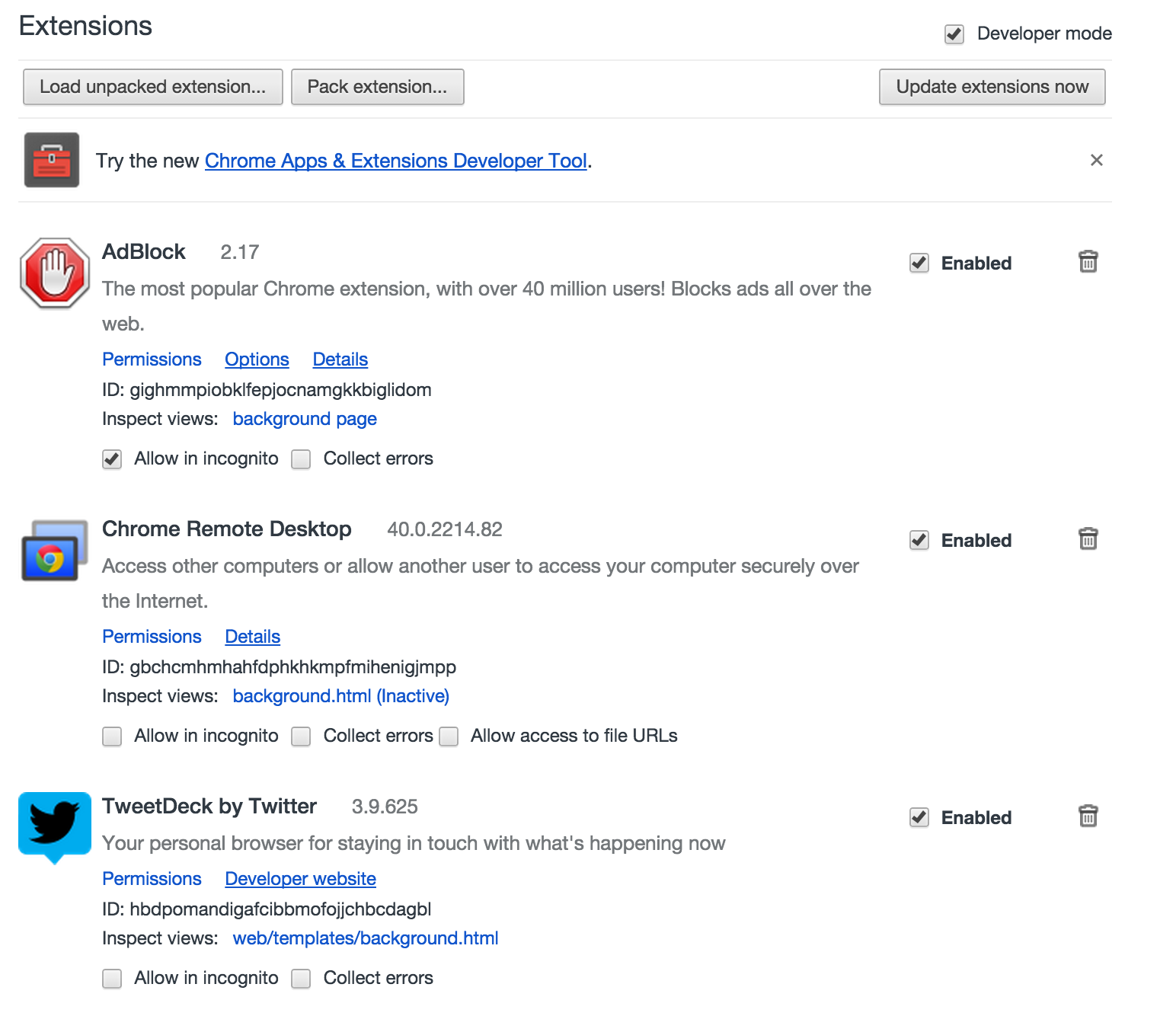
  • Chrome has been a dog lately. Opening Gmail has been like watching paint dry with that little blue progress bar seemingly stuck forever between just getting started and not quite done. I vaguely recall some advice a while back about extensions being the known culprit in one or two Chrome slow down cases so today I decided to go Nuclear and delete almost all of my installed extensions.

    The Last Extensions Left Standing
    The Last Extensions Left Standing

    Yes, I could have patiently disabled one at a time, closed Chrome, and relaunched Chrome until I found the bastard slowing me down but who has time for that? Instead, I removed all but the three extensions I actually use and just like that, Chrome+gmail was lighting fast again! Drive loads without me having to hit refresh multiple times and I’m able to click through the Google+ menu within seconds of opening it up in a new tab. It’s been like what a Windows computer used to feel like after an OS reformat. Good as new.

    I don’t think I’ll miss any of the extensions I deleted, but if I do, I’ll be adding them back in one at a time and seeing if Chrome goes the way of molasses again.

  • The Positive Web


    Since June we have been using the Securly web filtering solution. It is a truly cloud based solution with no on-premise equipment and very tight integration with Google Apps for Education. I’m told LDAP integration is coming soon but for us, that hasn’t been a deal breaker since most of our users are on Mac or ChromeOS. With IP based policies being rolled into the UI and a basically infinite ability to scale to meet our future bandwidth needs, Securly is a solution that continues to evolve right along with us.

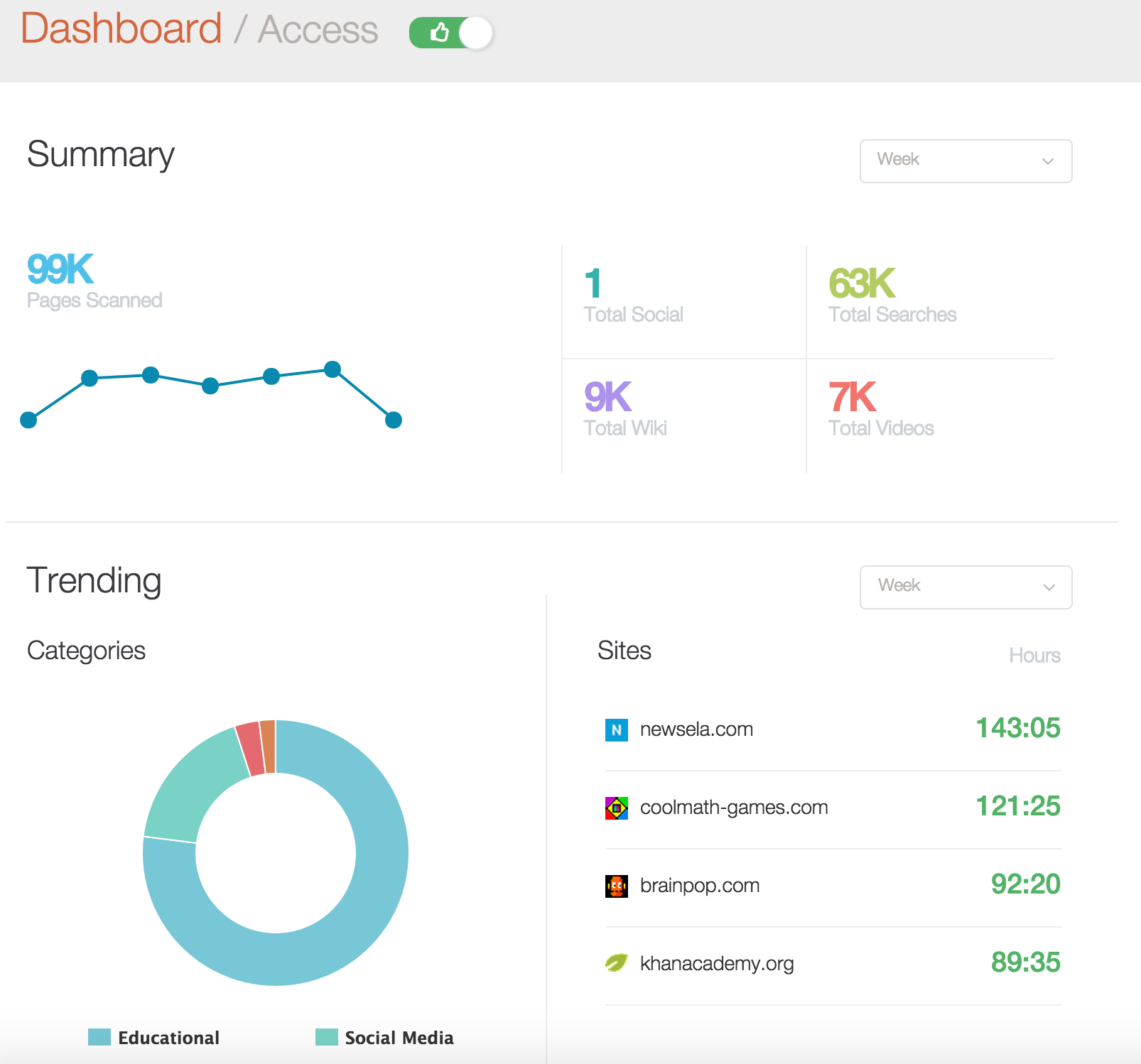
    In comparing Securly to the major web filtering players in the education space, I think it is fair to say that they have a different philosophy about web filtering than most. In the screen shot above, which I freaking love by the way, you can see stats for student web access. Not blocked pages, which they have a view for too, but sites kids are actually using. In our case, as we begin having discussions about wether Newsela is a service we want to pursue as a district standard, we now have compelling data telling us that it’s already being widely used and is in fact our most accessed web site on a weekly basis. The above dashboard is a very simple thumbs up view versus a thumbs down view of our district’s web activity but it goes to the heart of what Securly is about. Providing a web filtering solution for education. This is a relatively recent update to the UI (one that I hope finds it’s way over to the audit trail reports sooner rather than later).

    As I’ve said before, I have yet to meet a web filter that did everything I wanted it to do and did it easy. OpenDNS and Untangle still hold a sentimental place for me but Securly is fast becoming the easiest, most classroom friendly web filter I’ve ever used. Particularly in GAFEland. It’s not perfect*, but whenever we start discussing other options, we keep coming back to the simple administration, tight Google Apps integration and no on-prem box features that set Securly apart.

    I always looked down at web filtering as something that we had to do to be CIPA compliant in schools even if it hampered the learning process in classrooms. Lets be honest and admit that web filtering in the past was all about compliance and limitations and never worked well for the classroom teacher, no matter how hard we tried. With the rise of devices, web filters that over block and don’t allow for teacher judgement have become major impediments to learning. I always believed, and still firmly do, that educating kids (and teachers too) about proper internet etiquette, search and effective use of the web was more powerful than any filter could ever be, but thanks to Securly, I now see a positive use for the (mandatory) web filter that I never did before.

    Full disclosure. I’m a fan and Securly didn’t pay me to say so.

    *FYI – We can now set Force Login to Google Apps per IP Policy. Yay!

  • I’m an avid Chrome browser user. Chrome stole me away from Firefox back around ’09 just as Firefox had stole me (ok, more like rescued me) from Internet Explorer back in the early days of the web. Chrome was lean and fast and worked well. And when it didn’t, it had a sense of humor about it. I don’t just run one Chrome Browser on a daily basis, I also run Chrome Canary, the beta browser, which back in the day was a solution to running a work gmail account and a personal gmail account at the same time. I’ve been doing it so long, I can’t bring myself to change my workflow to Chrome profiles. But lately Chrome, or more accurately, Google Apps on Chrome, has been giving me some trouble. Gmail is slow to load, in both Canary and Chrome and on both my personal and work gmail accounts. Docs fail to fully load. Google+ takes forever to load. This happens at work with a 1Gpbs link and at home with a 24Mbps link. It happens pretty regularly. I have disabled extensions, cleared caches and changed DNS servers. Nothing seems to permanently solve the problem. Despite all that, I’ve been hesitant to try another browser. Ok, more like too lazy. But today I got fed up with one particular annoyance and it may have pushed me over the edge.

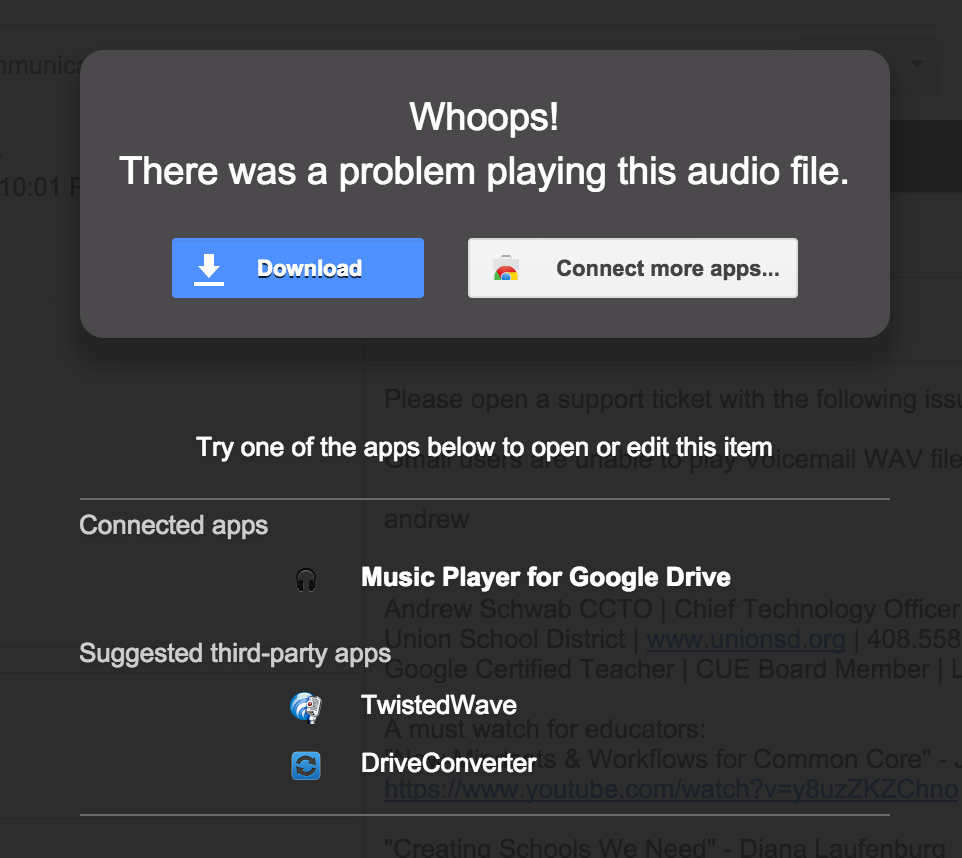
    We use a hosted VoIP phone solution from JIVE. I have my voicemail set to deliver to my email, a nice feature as I don’t have to interrupt my workflow on my computer to check voicemail, it’s integrated into my gmail. Or it should be. In Chrome, the WAV file attachment won’t play. When I open the voicemail email and click on the WAV file, I get the following prompt:

    Download WAV

    I’ve tried the WAV player extension, I’ve tried assigning an App. It still won’t play. I end up having to download the file and have the MacBook pay it in iTunes. Not the most seamless process. On my iPhone, a simple tap plays the message. On a whim, I tried to play the file in Safari. Low and behold, it worked. I was shocked mainly because I thought it might be a Gmail problem. It turns out it’s a Chrome problem. Now I am considering giving Safari a run, at least for a while. Before Canary, I used to run my work gmail in Chrome and my personal Gmail in Firefox. Looks like I might go back to the two browser solution. At least until Google teaches Chrome how to play a WAV file on a Mac.

    I suppose I could just switch to a Chromebook. My Acer plays the WAV files in browser just fine.

  • Look what my school GAFE account is telling me:


    Be Careful!


    And letting my kids play in the backyard unsupervised is probably not a good idea either. Actually, this might be more helpful if it advised people to be careful about what they discuss internally.

  • Image Source: http://memeburn.com/2011/08/the-google-graveyard-20-products-that-failed/
    Image Source: http://memeburn.com/2011/08/the-google-graveyard-20-products-that-failed/

    Having used Google Apps for Education since 2007, I’ve been through a lot with the platform. Whereas I used to look forward to the newest updates and the improvements to usability and stability they brought, I find myself dreading them lately. Mostly because the updates these days seem more about drastic UI changes than improved features or stability. The major appeal of GAFE, even beyond free, was simplicity and ease of use. Instead of  the fancy New Drive or beta features bolted on top like Google Classroom, what we really need is:

    (or why Enterprise IT departments may not like Google Apps as much as you do)

    1. Chromebook logins that only need the username, no GAFE domain required. For younger students, it’s just too much. I’d be ok if it only worked when we restrict login on the device to one Domain.

    2. Fully sortable fields in the Admin interface. Pretty Please.

    3. An Outlook Connector for Windows that doesn’t cripple Outlook.

    4. A way to set the default behavior of clicking on an attachment in Gmail to download instead of open in Chrome. Windows users expect it to download to a folder. I realize Google doesn’t have Windows users anymore, so maybe they don’t realize how painful some of their recent UI updates have made it, but really, it’s way more complicated than it used to be. My power users still very much use MS Office every day and their email client should respect that.

    5. The ability to lock a User’s name in the Domain Directory. Users being able to change their names in G+ is cool, but having it reflect back to the Domain Directory listing is lame. And not being able to change it back as an Admin is lamer still.

    6. Better Groups. Just better groups. Thanks

    6a. Sub Org and Group syncing would make sense, don’t you think? Like a group for every sub org with users.

    6b. What’s up with that special *all.users user in groups. It shows up funky in calendar invites and having a button to add it to any group, not awesome, speaking as someone who had someone accidentally add All Users to a group that shouldn’t have had it.

    7. Gmail Contacts that actually work. As in gmail contact groups that sync to mobile.

    8. Some UI consistency across Apps. Heck, just replying to an email could happen a half dozen different ways depending on where a user is when they try to reply. It’s ugly.

    9. A way to Auto Login a user to a chromebook. Because that would be very awesome.

    10. Remote control to a chromebook. Yes, there are web based solutions, but native remote control from the Admin panel. Click and in. You can do it. You’re Google!

    11. Side by Side view for Calendar. Might be able to get people off the Outlook Connector then, in which case, cross of #3.

    12. Real time or near real time status of Chrome devices. Who’s logged in, what their IP is, what SSID they are on. System stuff that is easy to get. Really easy since you’re polling them anyway.

    13. A way to set the default mail client in Windows and Mac to Gmail. For windows, there used to be a downloadable .exe file that would set gmail as the default email client with Chrome shortcuts on the desktop. It was slick. The nine dot waffle thing, not so much.

    Screen Shot 2014-11-15 at 8.20.40 PM

    14. Stop updating the UI every few months, really. Let users learn how to do things and then have a few years to get good at doing them. Incremental improvements are great, but wholesale shifts, not so much. I’m still not sure wether I need to double click or single click a drive folder anymore. And drag and drop, forget about it if you’re in a search result view, which by the way looks exactly like the regular folder view where you can drag and drop. Overall, it is very disjointed and jarring for regular users.

    15. A checkbox to hide users in a Sub Org from the Domain Directory. Specifically, student accounts. Because who wants to wade through a few thousand student names to find John Smith in the business department?

    16. An admin panel your mom could use. Because really, that’s how easy it used to be. Going the Microsoft route and hiding all the features behind pretty icons and multiple layers is just sad. Because really, who wants to be like Microsoft.

    To sum up, how about a long pause from drastic UI changes and new stuff and get to work on the boring but important grown up things like improving the overall experience for everyone, not just Chromebook users. And thanks for the unlimited storage and feee Vault. That was really nice.

  • Screen Shot 2014-11-20 at 6.57.53 AM

    I spent yesterday morning in a Mobile Device Management shootout listening to a series of MDM vendors tell me they all did basically the same thing when it comes to MDM on iPads. The reason, or blame, is Apple’s APIs. The fact of the matter is, the MDM solutions can pretty much only do what Apple lets them do, which is more or less the same thing. The vendors then tried to differentiate themselves with additional features. Teacher management portals seem pretty popular, except Teachers don’t really have time to learn another portal interface. Solution suites that can manage both desktop, laptop and mobile was the other route a couple of them took but if you are in the market for a solid iPad MDM solution, I really didn’t see a difference. That leaves cost. Each vendor solution presented, with the exception of one, had a cost, either in MDM licensing, or in Web Filtering bundled with MDM. The exception was Cisco Meraki (pains me to even write those two words together), which is free unless you want support, then you’re paying money.

    There is an alternative. John Patten from Silvan Union School District in Modesto has developed a workflow and how-to for using Apple’s free MDM tools to manage iPads. From everything I’ve heard, and I have not deployed this myself yet, this solution should be good to go up to a few thousand iPads. For my potential K-1 deployment, that’s perfect. Some of the feedback I heard from John’s session at CETPA was that his session is what Apple should have run. Where Apple had no new answers for the continuing trouble with iPad deployment and management (read The Trouble With Tribbles and iPads Too if you forget how bad it was at the beginning), John apparently had answers for everything so I leave you with John’s presentation from yesterday and wish you luck, I’ll probably be going down this path over summer myself and look forward to hearing from anyone that tries it before me: Managing iOS Devices with Apple Profile Manager

  • Screen Shot 2014-11-15 at 7.22.43 PMThis year when our Lightspeed Rocket 1.0 box failed, we decided to dive head first into a hosted web filtering solution. We worked with Securly over summer on some custom requirements and after a few false starts, made the switch at the start of school. It’s not perfect and we’ve had some issues but then I’ve never met a web filter that didn’t have issues. By design, they all break the web in one way or another.

    The appeal of the Securly architecture was really it’s scalability. As a web based, hosted solution, we’re not limited by throughput limits. With box based systems, to scale bandwidth beyond a typical 1Gb connection requires more hardware or going big out of the gate with a 10Gb appliance. Because we’re already looking to expand our Internet service from 1Gb to 6 Gb over the next 2-3 years, this was a major consideration for us. Yes, we could bite the bullet and just go big but in case you don’t know, if I can avoid having hardware sitting in a server room that I have to care and feed, I usually do.

    The other feature that really drew us to Securly was the tight integration with Google Apps. When our students login to their chromebooks using their school Google Apps accounts, they are automatically in the right filter policy based on their Google Sub Org. It’s seamless and easy and we don’t have to run client software or load all of our students into Active Directory. More importantly, students only have to login one time. With all the apps students need to login to these days, saving one login to a web filter can be a big time saver for instructional time.

    Moving off of chromebooks and onto iPads, iMacs, n-Computing devices or windows laptops, things get a little messier but Securly is adding new features and has been very open to our feedback and requests. I see this as our trial year. If we don’t see improvement in the direction we want, we’re not locked into anything. That’s another nice thing about hosted solutions. We’re not stuck in hardware waiting 3-5 years for an upgrade. We can adapt faster than that. So if this Securly thing doesn’t work out we can always jump on the County Office’s Palo Alto Networks box and filter from there.

  • nimble2

    I was thinking about backups the other day and realized we haven’t had any storage issues in a while. I’m sure that’s thanks to our relatively new Nimble Storage Array. I also find myself wondering why our wifi system can’t be more like the nimble. Human understandable GUI, cost effective, plays well with everything, just works and can be mastered in an afternoon. But I digress.

    Looking at moving forward with an offsite backup strategy, we have two solid options: buy a second nimble array and host it at one of our school sites or rent space on the County Office’s nimble and snapshot over to it from ours.

    Part of me likes the idea of not having to manage another box but honestly with a nimble array, it’s a minor concern. Hosting at the county has an appeal for their better backup power and redundant network connections. It’s also nice to have someone else to call when things go wrong. But then, we lose some capability going hosted and no one every got fired for buying too much storage. But do we need it?

    With our move to gmail and Google docs, local storage is becoming less and less important however some applications still have the potential to suck loads of data. When we start installing IP cameras and steaming HD video back to the SAN, we’ll start filling up all that storage, unless I can find way to stream it to Google Drive.

    Nimble Storage has made it almost too simple to not locally host our own backup solution. If I still weren’t aiming for a Zero Server Server Room, buying another array and housing it locally would be a no brainer. Or maybe we will buy another Nimble but host it in the County Office’s new data center instead of at one of our sites and get the best of both worlds.

    Data backups used to be a major concern for technology departments before services like Google Vault came around. Given that Vault is now free to schools and Google Drive storage is unlimited, it seems silly to still be talking about local storage. The real challenge now is uninterruptible Internet access. We’ve become so dependent on the Internet for core services that not having a backup connection through an alternate route is the real worry. Too bad Nimble doesn’t make a magic box for that.

  • wifi fail
    Image Source: http://www.sudoseth.com/blog/2009/04/wifi-security-fail/

    Cisco, HP, Ruckus, Meraki and now Aerohive. I’ve used a lot of wireless systems in my time and I’ve come to appreciate when wifi has just worked and practiced my cursing on systems that promised the sun with every future update and delivered something more like a florescent light bulb.

    For a time I deluded myself into thinking that with one Access Point per classroom, any system would be good enough but in the wifi space with a heterogeneous network approaching 5,000 district owned wireless devices and who knows how many personal devices, I’m finding it’s the little things that really count and one AP per classroom has brought a whole new set of challenges.

    With density comes different issues. Channel overlap and power settings become critical. A client’s ability, or lack of, to roam seamlessly between APs without taking 5 minutes to re-associate manifests as intermittent disconnects and support tickets piling up for “no Internet”. A lack of visibility to what is going on, either because the charts don’t update properly in the current version or because there are not charts for important data points like what a client is actually doing on the network grow tiring when attempting to troubleshoot “the Internet is slow” complaints that are inevitable but disruptive to learning. Other things, like AirPlay Mirroring performance tanking for no apparent reason, are easy to blame on the wifi but hard to actually point to a specific thing and say, “Ah ha, if only we force AppleTV to 5Ghz, with unlimited bandwidth, we’ll be back in business!” Sadly no.

    I have yet to find the perfect wifi system but I know what I miss. I miss easy access to client usage data, being able to see at a glance which clients are doing what on the network. I miss a system that supports roaming MacBooks without jumping through a million hoops, actually auto balances channels and power and integrates Google Apps authentication without a per user charge. Above all, I miss a GUI interface designed for humans instead of engineers.

    I’m not sure why Wifi is so hard. I don’t think it has to be. Like everything else in IT these days, maybe I’m chasing a dream of a streamlined, easy to use system that just works. With just 10 sites, I’d like to think I should be able to have a wireless system that doesn’t require a full time network engineer to manage. Lately, I’m wondering if it’s really possible.